
 by
Christian Fischer

Creating engaging social media videos doesn’t always require a camera, a film crew or original footage. With the right editing techniques, even a collection of still images can become a visually appealing video for Instagram Reels, YouTube Shorts, TikTok and other social platforms.
To turn stock photos into social videos, arrange licensed images in a video editor, adapt them to a vertical format, add subtle motion, incorporate text or narration, and export the finished sequence as a video file. The key is to combine individual photographs into a coherent story rather than simply displaying them as a slideshow.
Stock photography gives creators and businesses access to visual material without organizing a dedicated photo shoot. This is especially useful for educational videos, product explainers, travel inspiration, promotional content and social media campaigns.
The main advantages include:
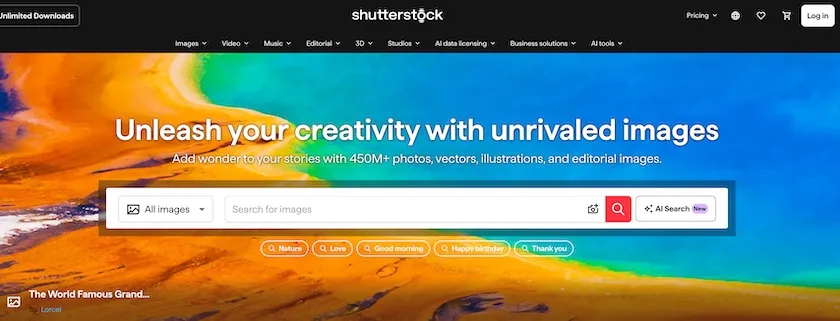
Platforms such as Shutterstock provide a broad selection of licensable photographs covering business, lifestyle, technology, travel and many other subjects. Choosing images that fit the intended message makes the editing process considerably easier.
Before selecting images, decide what viewers should learn, discover or do after watching the video.
For example, a home decor brand could create a short video explaining three ways to make a small living room appear more spacious. Each tip can be illustrated with a different photograph.
A simple structure for a 20-second video could be:
These timings are a creative starting point, not a platform requirement.
Select images that belong together visually and support the story. A series of unrelated photographs can make the finished video feel inconsistent.

When browsing a stock photo library, look for:
A horizontally composed image can still work in a vertical video, provided the main subject remains visible after cropping.
For Instagram Reels, YouTube Shorts and TikTok, a 9:16 aspect ratio is a practical starting point for full-screen vertical content. A common production resolution is 1080 × 1920 pixels.
Create a vertical canvas in your editing software and position each photo within the frame. Depending on the image, you can crop it, animate its position or use a background treatment to avoid cutting off important details.
Keep essential text and visual elements away from the edges, where platform interfaces may overlap the video.
Subtle movement can make still photographs feel more dynamic.
Useful techniques include:
Many video editing tools support these effects through keyframe animation. A gradual zoom, for example, can be created by setting one scale value at the beginning of a clip and a slightly larger one at the end.
Avoid excessive motion, particularly when text needs to remain readable. Animation should support the story rather than distract from it.
Visual movement alone is rarely enough to communicate a complete message.
Combine the photographs with short text overlays, informative narration or both. Captions can help viewers understand spoken content when watching without sound and improve accessibility.
Music and sound effects can establish a mood, but they also introduce licensing considerations. Use original audio, platform-approved music or properly licensed tracks, and confirm that the rights cover your intended commercial use and distribution channels.
Once editing is complete, export the video using a format supported by the target platform. MP4 with H.264 encoding is a widely compatible option.
Before publishing:
After publication, monitor metrics such as average watch time, completion rate, saves, shares and relevant clicks. These indicators can help identify which topics and editing approaches resonate with your audience.
Imagine creating an Instagram Reel about making small rooms feel more spacious.
Scene 1 (0–3 seconds): Show a photograph of a compact living room with the text: “Want your room to feel bigger?”
Scene 2 (3–8 seconds): Zoom slowly into an image showing light-colored furniture. Add the caption: “1. Choose lighter tones.”
Scene 3 (8–13 seconds): Transition to a photograph featuring a well-positioned mirror. Add: “2. Reflect natural light.”
Scene 4 (13–18 seconds): Use an image with uncluttered furniture and open floor space. Add: “3. Keep the layout simple.”
Scene 5 (18–20 seconds): Finish with a short call to action: “Save these ideas for later.”
This approach transforms several related photographs into an informative video with a clear beginning, middle and end.
Stock photos are not automatically free to use simply because they are available online. Creators must obtain the appropriate rights before incorporating third-party images into commercial social media content.
Shutterstock’s Standard Image License generally permits use in social media and audiovisual productions, subject to its terms. For example, the license specifies a US$10,000 production-budget limit for certain audiovisual uses. Larger productions or other uses may require different licensing arrangements.
Images marked “Editorial Use Only” should not be used in commercial promotional videos without additional authorization. Music, footage and other assets may have separate license requirements.
Always review the current license before publishing, especially when creating content for clients, paid advertising or campaigns involving identifiable people.
Yes. A Reel can be created from still photographs by arranging them on a video timeline and adding animation, text, narration or audio. Original video footage is not technically required.
A 9:16 vertical layout at 1080 × 1920 pixels is a useful starting point for Reels, Shorts and TikTok videos. However, platform specifications and display areas may vary.
No. Many accessible editing applications provide basic zoom, pan, transition and text-animation features. More advanced tools may offer parallax effects and detailed keyframe controls.
Generally, yes, when the images are licensed appropriately and the intended use complies with the applicable Shutterstock license. Commercial use is not permitted for ordinary editorial-only images.
Turning stock photos into Reels, Shorts and social videos is an accessible way to create visual content without producing all the imagery yourself.
Successful results depend less on complicated effects than on relevant photographs, clear storytelling, readable text and thoughtful editing.
By combining a suitable selection of licensed images from a resource such as Shutterstock with consistent motion and a defined message, creators can produce useful social media videos while keeping production workflows manageable.
THE AUTHOR
Christian Fischer
Artificial intelligence has transformed the way businesses create visual content. Instead of searching through hundreds of photographs or commissioning custom illustrations, marketing teams can now generate images from simple text instructions. While these tools offer significant advantages in terms of speed and flexibility, they also introduce questions about commercial usage rights, ownership and legal responsibility. […]