
 by
Christian Fischer
by
Christian Fischer
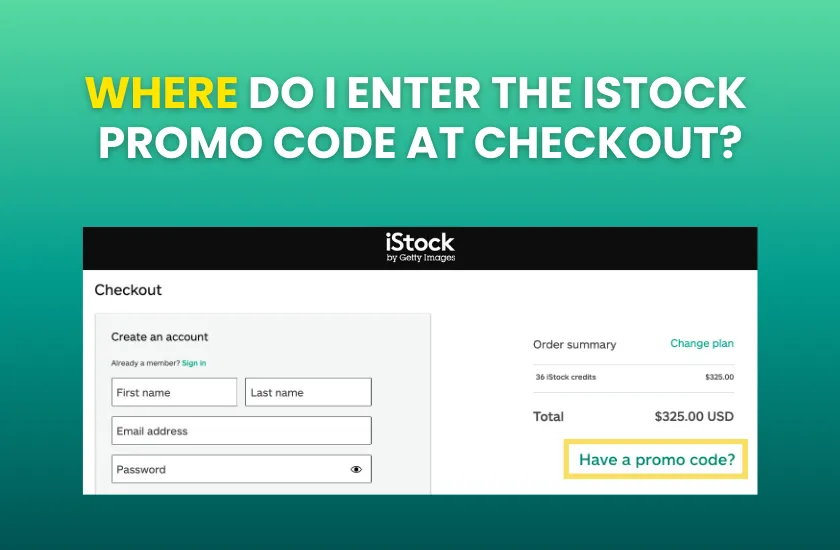

Finding a great deal for iStock is one thing, but actually applying it is where many users get stuck. If you have your exclusive Photocase promo code for iStock ready, you’re only a few clicks away from major savings.
The “promo code” field on iStock is purposefully subtle. To ensure you don’t miss it and end up paying full price, here we’ll tell you exactly where to look on the checkout screen.
If you don’t yet have our iStock promo codes, grab them right now! We have two active promo codes:

25% Off All iStock Large Credit Packs (18+ Credits)
Unlock a 25% discount on all credit packs from 18 credits and up at iStock!
15% Off All iStock Subscriptions and Credit Packs
Enjoy a 15% discount on any iStock subscription or credit pack!
When you click on the desired banner, a pop-up window will appear revealing your code. Simply copy it and have it ready to use.

iStock’s checkout process in 2026 is streamlined and relatively simple. Follow these steps to find the hidden link:
If you use our banners, you’ll be automatically redirected to iStock’s plans and pricing page (you can navigate to it directly in your browser). Once there, choose the subscription or credit pack you wish to buy —keep in mind that our codes apply to different items during your selection.
Once you have selected your credit pack or subscription and logged in or created your new account, you will land on the checkout page. This page is divided into sections: Billing Address, Payment Method, and Order Summary.
On a desktop, look to the right-hand sidebar, if you’re using a mobile device, scroll down past the payment fields. You will see a breakdown of your purchase, including the subtotal and taxes.
Just above the final total and the “Complete Purchase” button, you will see a line of green text that says:
“Have a promo code?”
This text is actually a link.
25% Off All iStock Large Credit Packs (18+ Credits)
Unlock a 25% discount on all credit packs from 18 credits and up at iStock!
15% Off All iStock Subscriptions and Credit Packs
Enjoy a 15% discount on any iStock subscription or credit pack!
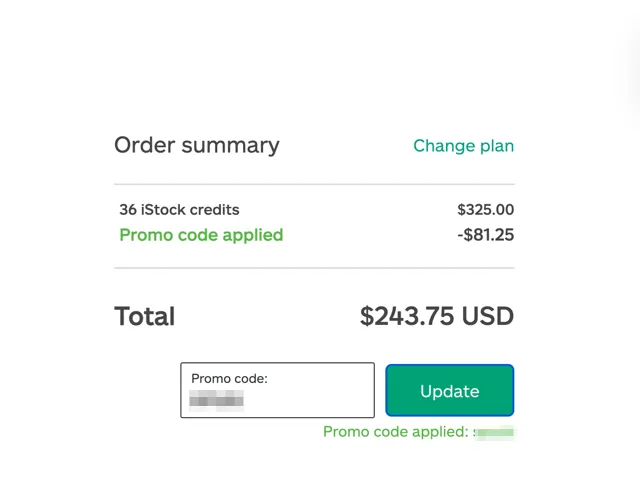
Click that link! A text box will appear; this is the promo code field. Paste your Photocase code (the one obtained from the pop-up window we mentioned) and hit the “Apply” button.
The page will refresh for a split second, and then the summary will show the amount discounted and the updated total reflecting that discount.
Important: Make sure the total has dropped before you click the button to finalize the payment.
The interface is slightly different depending on how you are shopping:
If you’ve followed the steps above and the code isn’t working, check these three things:
Now that you know exactly where to go, you can confidently claim your discount. Grab your exclusive code from our homepage and head to the checkout!
THE AUTHOR
Christian Fischer
When using coupons and promo codes online, the expiration date is a common concern, especially when it is not explicitly stated. Nobody likes finding a great deal only to have it fail at the final second! iStock, like many other stock media agencies, runs promotions and sales throughout the year, some with shorter lifespans than others. This […]

Ever come across a great iStock promo code but feared it wouldn’t work because of your geographic location? We’re here to put your mind at ease. The current iStock partner codes are designed for a global audience. At Photocase, we have two awesome iStock discount codes available to you, no matter where you are in the world. […]
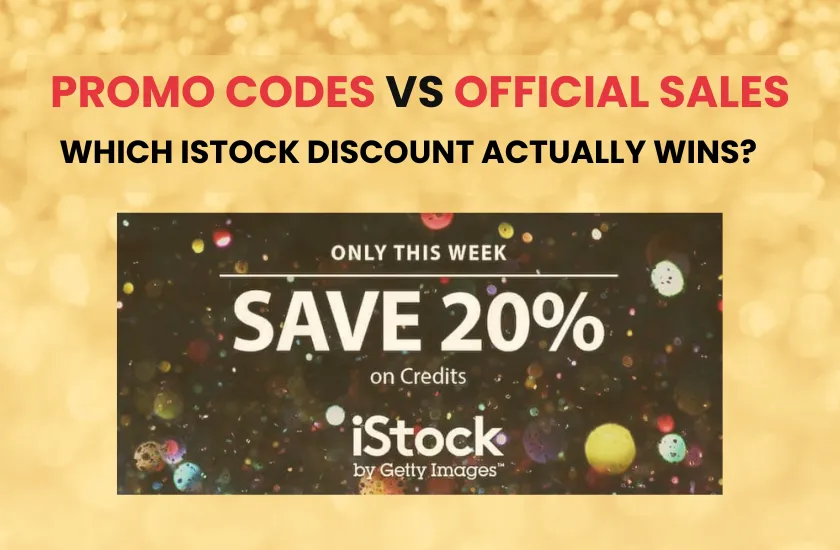
Have you ever been about to confirm a purchase on iStock, happy that you have a promo code to save money, and then doubt crept in about whether you should wait and see if a bigger sale comes along? You’re not alone; since iStock hosts more than one sale event every year, it’s common for users to wonder […]