
 by
Christian Fischer
by
Christian Fischer
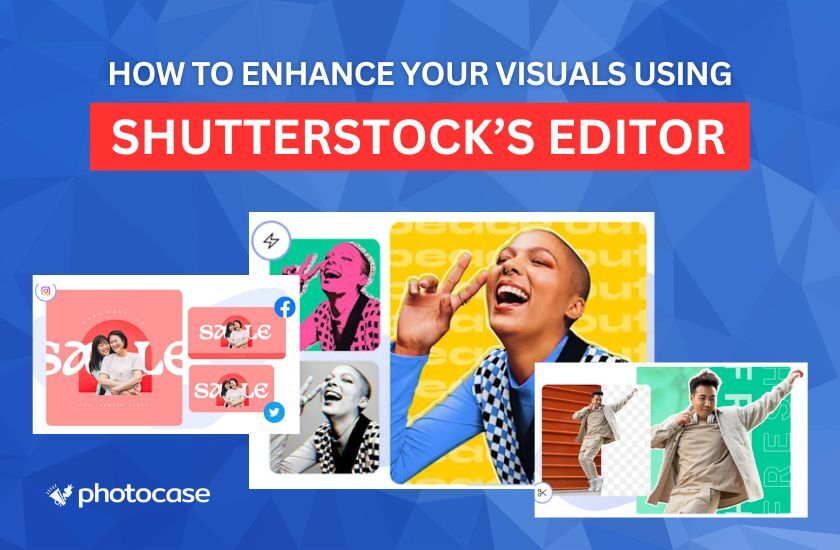
Dive into the world of Shutterstock Creative Flow, a dynamic platform that transforms your creative visions into reality. Whether you’re an expert designer or just starting out, this tool will elevate your projects to new heights. Discover its key features, unlock pro tips, and enhance your editing skills with our insightful guide.
This dynamic service that seamlessly combines an image editor and cutting-edge generative AI features. Designed to cater to a wide range of design needs, it offers standout tools that elevate your projects effortlessly.

Exclusive: 15% off all standard subscriptions and packages from Shutterstock!
Get 15% off all standard subscriptions and packages from Shutterstock now!
| Feature | Description |
| Image Customization | Modify size and colors, add text, and apply filters to enhance your visuals. |
| Pre-designed Templates | Choose from a wide array of editable templates for social media, marketing materials, and more. |
| Generative AI | Alter stock photos to meet your vision using the latest AI technology without learning complex design skills. |
| Accessibility | Easily use the editing features online, across desktop and mobile devices, without installing anything. |

To embark on your creative journey, follow these straightforward steps:
Alternatively, go to Creative Flow directly and browse photos from the editor or upload pictures from your device to edit them in the app.
Unlock the full potential of Creative Flow with any Shutterstock subscription or download pack—premium features await you at no extra charge! Free users enjoy limited yet still useful access to features.
Follow these simple steps to open, edit, and export your image using the Shutterstock Editor:
Open the editor:
Log in to your Shutterstock account, search for an image, click on it, and then click either “Edit” to access all the generative AI features to modify your file or “Open in Create” to access the complete image editing suite.
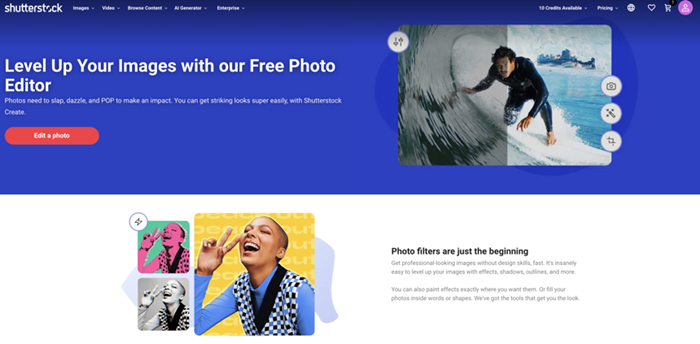
Start Editing:
Choosing “Edit”:
Choosing “Open in Create”:
Exclusive: 15% off all standard subscriptions and packages from Shutterstock!
Get 15% off all standard subscriptions and packages from Shutterstock now!
Preview Your Work:
Review all edits to ensure everything looks perfect. Adjust any elements as needed before finalizing.
Export the Final Image:
Click the “download” button, choose the desired file format (JPEG or PNG), and save the image to your device. You’re done! Your customized image is now ready to use.
Shutterstock’s editing tools transform your creative vision into stunning visual designs, from simple tweaks to complex masterpieces. With this versatile software, you can effortlessly craft content for any marketing need.
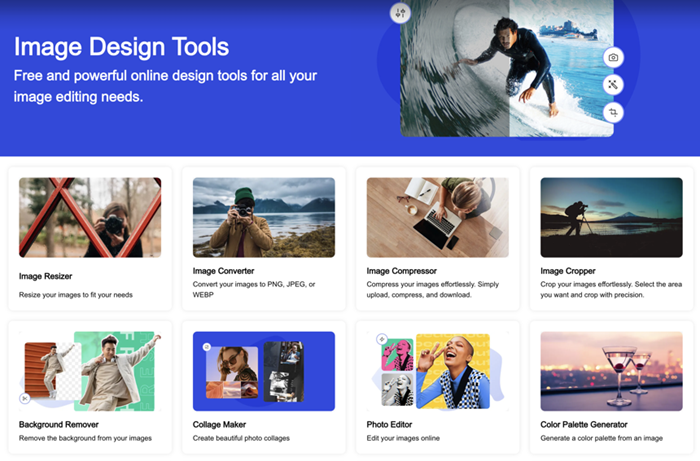
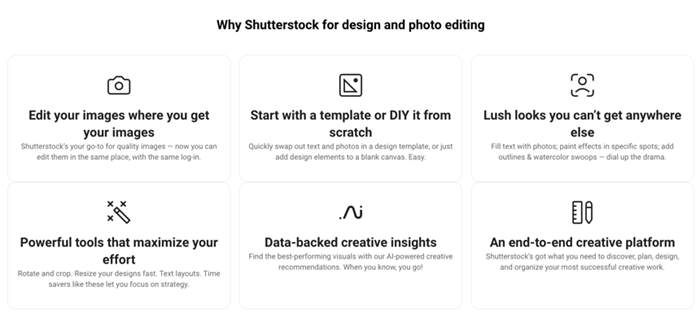
To enhance your editing skills, consider these expert recommendations:
Before diving into your projects, it’s essential to weigh the advantages and disadvantages of using this editing tool:
| Pros | Cons |
| User-friendly interface that is easy to navigate. | Some advanced features may require a learning curve for beginners. |
| Access to a vast library of high-quality visuals and templates. | The best functions are reserved for Premium users (with an active Shutterstock subscription.) |
| Generative AI tools expand creative possibilities. | Limited offline capabilities; requires an internet connection. |
| Regular updates and new features enhance functionality. |
To ensure getting the most out of the Shutterstock editing tool, consider these top tips:
Unleash your creativity with Shutterstock Editor, a dynamic tool for crafting breathtaking visuals. Dive into its features and advanced techniques to elevate every project, whether personal or professional. With unmatched flexibility and functionality, this resource transforms your ideas into vibrant reality.
Dive into the platform with a playful spirit and let your creativity soar. With each design, you’ll sharpen your skills and open up limitless possibilities for your artistic journey.
THE AUTHOR
Christian Fischer
When using coupons and promo codes online, the expiration date is a common concern, especially when it is not explicitly stated. Nobody likes finding a great deal only to have it fail at the final second! iStock, like many other stock media agencies, runs promotions and sales throughout the year, some with shorter lifespans than others. This […]

Ever come across a great iStock promo code but feared it wouldn’t work because of your geographic location? We’re here to put your mind at ease. The current iStock partner codes are designed for a global audience. At Photocase, we have two awesome iStock discount codes available to you, no matter where you are in the world. […]

Have you ever been about to confirm a purchase on iStock, happy that you have a promo code to save money, and then doubt crept in about whether you should wait and see if a bigger sale comes along? You’re not alone; since iStock hosts more than one sale event every year, it’s common for users to wonder […]